
WordPress slow? Why nothing happens for several seconds
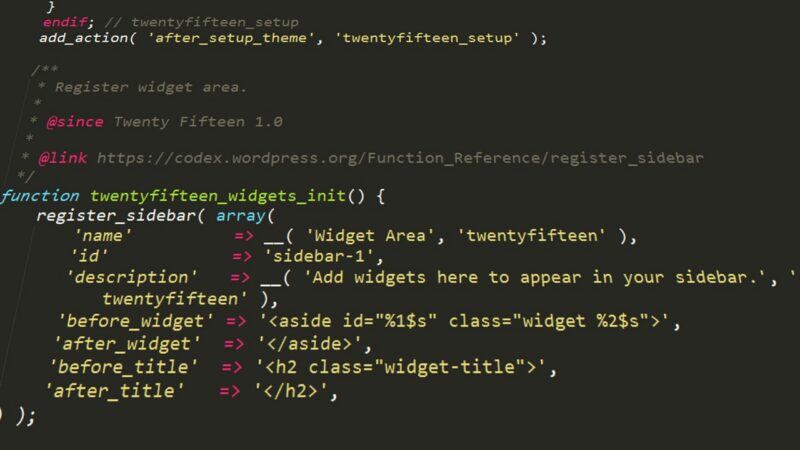
WordPress slow before anything even starts loading? The cause may be the database, PHP, plugins or external services rather than images and CSS.
The most frustrating kind of slow WordPress website is not always the one where images take half a minute to appear. Sometimes you click a link and for a while absolutely nothing happens. Blank space, a spinner, or simply silence. Then, after two, three or five seconds, the page suddenly starts loading quite quickly. That is when the usual advice starts: compress the images, install a cache or optimise JavaScript. But if the browser is still waiting for the first meaningful response from the server, the real problem may be much earlier in the process.
WordPress is not a static HTML file sitting on disk. On a dynamic request, PHP starts the application, WordPress loads its configuration, theme and plugins, runs hooks, asks the database for content and settings, sometimes contacts external services, and only then builds the response. If one of those stages is slow, the user is sitting in front of a closed gate. Optimising what happens after the gate opens may still be useful, but it will not shorten the queue before it.
WordPress TTFB: the server has to respond before the page can render
Time to First Byte is not a perfect measure of everything, but it gives an important clue: how long does it take before the browser starts receiving a response? TTFB is affected by the network, CDN, hosting and the application itself. If it is high, it is worth looking beyond the frontend code. You can keep shaving kilobytes off CSS and replace JPG files with AVIF, but if the backend needs several seconds to generate the document, the user will still be waiting.
Explore our services.
It is like tuning a car that spends three seconds deciding whether you really want to move after you press the accelerator. You can fit lighter wheels, a sports air filter and a carbon bonnet. The most annoying part is still that you press the pedal and nothing happens.
WordPress database slow? Size alone is not the answer
A common explanation is: “the database is too large”. Sometimes that is true in a very simplified sense, but the number of megabytes tells you very little on its own. A large, well-organised database can perform extremely well. What matters far more is which queries are being run, how many there are, whether they use indexes, whether a plugin performs expensive operations on every request, whether the options table is overloaded with autoloaded data, and whether the system is processing information the visitor does not need on that page at all.
WordPress and its ecosystem make it very easy for plugins to add their own data and logic. That is a major strength of the platform and also one reason why, after a few years, a site can start to resemble a car that has had five owners. One added a radio, another an alarm, another daytime running lights, another a camera, and another a charger. Every device works on its own. The problem starts when you pull the dashboard apart and find a bundle of wires held together with connector blocks from the hardware store.
One plugin can create a surprising amount of work
A plugin does not need to be “heavy” in terms of file size to make WordPress slow. It may perform a lot of database work, build complex conditions, check a licence with an external service, generate dynamic data or load its logic on every page even though it is only needed in one place. That is why the diagnosis “you have 37 plugins, remove half of them” is about as precise as “the car has too many parts”. What matters is which parts and what they are doing.
You can have five badly written plugins and a disaster, or forty lightweight components and perfectly respectable performance. Plugin count is better treated as a signal of maintenance complexity than as a direct performance metric.
WordPress backend slow: autoload can become part of the problem
WordPress stores many settings in the options table, and some of that data is loaded automatically on requests. That makes sense for information needed almost everywhere. It makes much less sense for huge abandoned structures, temporary data or settings from a plugin that has not existed on the site for two years. Over time, autoload can become one of the areas worth checking when the WordPress backend is slow. Not with a magical “clean the database” button, but by identifying the actual data and which component owns it.
External services can hold the page up too
Not every delay lives in MySQL. While generating a page, a plugin may ask an external system for an exchange rate, licence status, product data, a feed, weather data, CRM information or almost anything else. If that call is synchronous and the external service responds slowly, WordPress can end up waiting alongside the user. Image compression will never detect this problem because the image has not even had a chance to start loading yet.
WordPress slow despite cache? You may only see the problem sometimes
A full page cache can bypass a large part of WordPress processing for public pages. The first request generates the page and the next visitors receive a ready-made copy. That is a very useful solution and should be used where it makes sense. But it can also mean a backend problem appears only after the cache expires, after it is cleared, for logged-in users or in dynamic areas. The site “usually works”, then occasionally stops and thinks. These problems can be awkward to diagnose because they often disappear exactly when you start measuring them.
Why an external test does not always reveal the cause
An external tool mostly sees the outcome: the server responded after a certain time, the document has a certain size, scripts behave one way and images another. To find the actual cause inside WordPress, you often need to go deeper: profile PHP, inspect queries, check the slow query log, review HTTP requests, cron, object caching, server resources and the behaviour of specific endpoints. There is no black magic here. You just have to look at the system from the inside.
Is the hosting to blame?
Sometimes. Weak CPU, account limits, overloaded infrastructure, slow storage or poor PHP configuration can absolutely hurt performance. But “change hosting” is just as lazy a diagnosis as “install a cache”. If the application is doing unnecessarily expensive work, a more powerful server may simply do that unnecessary work faster. That can be effective and sometimes economically sensible, but it is still worth knowing what you are buying. A bigger engine helps when the real problem is lack of power, not a handbrake that is still on.
WordPress performance optimisation: start by locating the cause
Start by identifying where the delay happens. Is the first server response slow, or is the browser rendering slowly? Every page or one page type? Logged-in users or anonymous visitors? Cold cache or warm cache? Frontend or wp-admin? Only then go deeper. Check PHP, the database, queries, external connections, cron and plugins. Disabling random plugins on a live site is not a methodology. It is the digital equivalent of wiggling a cable and checking whether the television comes back.
If WordPress waits for a long time before anything starts loading, do not begin by hunting individual frontend kilobytes. First find out why the application takes so long to prepare the response. Sometimes a WordPress site is slow not because the images are too large, but because before it can show you an image it first has to sit through five unnecessary meetings with the database and call three external services.
Discover more articles
- Red means error, green means success? WCAG is clear: colour alone is not enough
- Ransomware got an AI assistant: Cursor helped with real-world attacks on companies
- Bots are getting better at attacking login and checkout. Cloudflare is launching self-learning protection on its Enterprise plan
- 395 organizations, 440 PaperCut instances and hundreds of AI agents: the attack shows a new scale of automation
- One person, over 1,000 AI-agent tasks: How website attacks are changing
- AI used your content? Cloudflare wants you to get paid
- Google gives website owners control over AI Search. New settings are now available globally
- Running a multilingual WordPress site? Check TranslatePress. This flaw could lead to a site takeover
- WooCommerce 11.1 will enable variation galleries for all stores. A separate plugin will no longer be needed